Remittance gets automatically printed if a check amount is equal to zero or you pay more than 12 vouchers with one check. The second part is easy to understand. What about checks with zero amounts? You can have this situation if Automatically Apply Existing Unapplied boxes checked in the Select Payables Checks window and unapplied amount is equal or higher than voucher amount. In this case during the process of building a check batch GP will automatically apply all unapplied payments, credit memos, returns and as a result some vendors may have a net amount of zero. If this happens the system will create a remittance record that will begin as "REMITxxxxxxx" and print a remittance to show the vendor what documents are applied. A remittance is not a check and it doesn't get posted to Bank Rec. The next REMIT number is automatically incremented and pulled from the PM Key Master table (PM00400).
To prevent this from happening you can unmark Automatically Apply Existing Unapplied boxes and then apply document manually or if a check batch is already built use the Edit Check window to exclude the applied documents in this check batch.
More info:
KB:861276 - How payments that have amounts of zero are treated in Payables Management in Microsoft Dynamics GP
https://mbs2.microsoft.com/Knowledgebase/kbdisplay.aspx?scid=kb,en-us,861276&wa=wsignin1.0
Wednesday, June 8, 2011


Thursday, May 19, 2011
MS GP: How to run a report based on GL system posted date?
If you need to run a report on all postings happened in GL on a specific date, you can use a SmartList report. There is a field in GP, called Originating Posted Date that tracks a system date when a transaction was entered and posted, not a trx posting date you can modify.
Go to Microsoft Dynamics GP -> SmartList
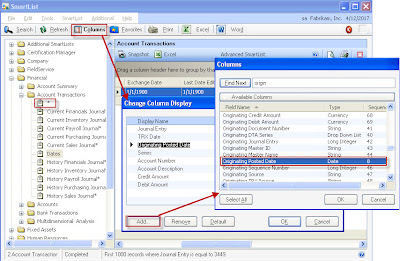
• Expand Account Transactions
• Click *
• Click Columns
• Click Add and lookup for an Originating Posted Date
• Click Ok and Ok one more time
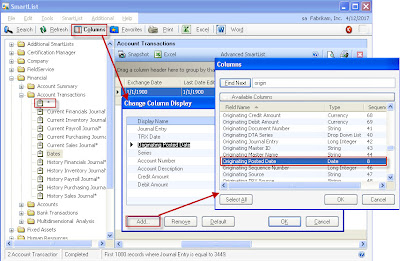
• Click Search and pull up a Originating Posted Date and set it equal to your date.
SmartList will generate a list of transactions that were posted that day.
Go to Microsoft Dynamics GP -> SmartList

• Expand Account Transactions
• Click *
• Click Columns
• Click Add and lookup for an Originating Posted Date
• Click Ok and Ok one more time

• Click Search and pull up a Originating Posted Date and set it equal to your date.
SmartList will generate a list of transactions that were posted that day.
Thursday, May 5, 2011
MS FRx: How to perform FRx backup?
Troubleshooting FRx can be tricky and in some cases the only way to fix the problem is to restore from a backup. That is why it is essential for a company to perform at least a weekly backup of FRx. FRx backup process is easy and it doesn’t require any SQL. To perform a backup you would need to copy a FRx SysData folder with all its subfolders to any other location. No financial data is stored in this folder. FRx uses the SysData for layouts and configuration information of reports.
For most FRx implementations FRx configuration files are shared between users in the SysData directory. A shared folder is usually located on the SQL server for GP. You can find the location of this folder by launching FRx and clicking the Admin -> Organization menu option -> SysData button. For the shared SysData folder, make sure to have users log out of FRx before doing the backup.

In order to restore a backup just copy over all backed up files and sub-folders into a SysData folder.
Friday, September 10, 2010
MS GP: How to fix an error in a receivables inquiry window for a particular user?
User1 gets an error: The stored procedure rmTransactionInquery returned the following result: DBMS: 515, Microsoft Dynamics GP:0 when opening an inquery window for a customer.
Run the following script against a company database to compare view types:
SELECT * from MC40500 where SERIES = 3 and USERID = 'user1'
SELECT * from MC40500 where SERIES = 3 and USERID = 'user2'
If the type is different:
UPDATE MC40500 set viewtype='3' where SERIES = 3 and USERID = 'user1'
Note:
VIEWTYPE' values:
FUNCTIONAL = 3 ORIGINATING = 4 REPORTING = 5
Run the following script against a company database to compare view types:
SELECT * from MC40500 where SERIES = 3 and USERID = 'user1'
SELECT * from MC40500 where SERIES = 3 and USERID = 'user2'
If the type is different:
UPDATE MC40500 set viewtype='3' where SERIES = 3 and USERID = 'user1'
Note:
VIEWTYPE' values:
FUNCTIONAL = 3 ORIGINATING = 4 REPORTING = 5
MS GP: How to unlock a user in SQL?

Go to SQL Managemnt Studio -> Security -> User -> Properties -> Status
Uncheck lock box
Friday, August 13, 2010
MS GP: How to perform a backup in SQL?
To perform a GP backup:
1. Open Microsoft SQL Server Management Studio
2. Verify that everyone is logged out of GP

Open ACTIVITY table under DYNAMICS database.
3. Backup DYNAMICS database

Right click on the database and go to Tasks -> Back Up.

If you want to change a path click Remove and then Add.

Click expansion button to change a File name, click OK.

Click Options and mark “Verify backup when finished”, click OK.

Click OK to start a backup.
4. Backup COMPANY database
Perform the steps under task 3, but for a company database.
To lookup a database name, you can:

Check the name by going to Dynamics GP menu Maintenance -> Backup.

Or you can run a query against DYNAMICS:
SELECT * FROM SY01500
1. Open Microsoft SQL Server Management Studio
2. Verify that everyone is logged out of GP

Open ACTIVITY table under DYNAMICS database.
3. Backup DYNAMICS database

Right click on the database and go to Tasks -> Back Up.

If you want to change a path click Remove and then Add.

Click expansion button to change a File name, click OK.

Click Options and mark “Verify backup when finished”, click OK.

Click OK to start a backup.
4. Backup COMPANY database
Perform the steps under task 3, but for a company database.
To lookup a database name, you can:

Check the name by going to Dynamics GP menu Maintenance -> Backup.

Or you can run a query against DYNAMICS:
SELECT * FROM SY01500
MS CRM: How to make attributes Business Required depending on the value of another attribute?
if (crmForm.all.fieldname.DataValue == "value")
{
//Set Business RequiredcrmForm.SetFieldReqLevel("attribute_name", 1);
}

Copy and paste to Event Detail Properties with marking "Event is enabled" box.
{
//Set Business RequiredcrmForm.SetFieldReqLevel("attribute_name", 1);
}

Copy and paste to Event Detail Properties with marking "Event is enabled" box.
Subscribe to:
Posts (Atom)