Search This Blog

Thursday, May 19, 2011

MS GP: How to run a report based on GL system posted date?

If you need to run a report on all postings happened in GL on a specific date, you can use a SmartList report. There is a field in GP, called Originating Posted Date that tracks a system date when a transaction was entered and posted, not a trx posting date you can modify.

Go to Microsoft Dynamics GP -> SmartList


• Expand Account Transactions
• Click *
• Click Columns
• Click Add and lookup for an Originating Posted Date
• Click Ok and Ok one more time


• Click Search and pull up a Originating Posted Date and set it equal to your date.

SmartList will generate a list of transactions that were posted that day.

Thursday, May 5, 2011

MS FRx: How to perform FRx backup?

Troubleshooting FRx can be tricky and in some cases the only way to fix the problem is to restore from a backup. That is why it is essential for a company to perform at least a weekly backup of FRx. FRx backup process is easy and it doesn’t require any SQL. To perform a backup you would need to copy a FRx SysData folder with all its subfolders to any other location. No financial data is stored in this folder. FRx uses the SysData for layouts and configuration information of reports.


For most FRx implementations FRx configuration files are shared between users in the SysData directory. A shared folder is usually located on the SQL server for GP. You can find the location of this folder by launching FRx and clicking the Admin -> Organization menu option -> SysData button. For the shared SysData folder, make sure to have users log out of FRx before doing the backup.


In order to restore a backup just copy over all backed up files and sub-folders into a SysData folder.

Friday, September 10, 2010

MS GP: How to fix an error in a receivables inquiry window for a particular user?

User1 gets an error: The stored procedure rmTransactionInquery returned the following result: DBMS: 515, Microsoft Dynamics GP:0 when opening an inquery window for a customer.

Run the following script against a company database to compare view types:

SELECT * from MC40500 where SERIES = 3 and USERID = 'user1'
SELECT * from MC40500 where SERIES = 3 and USERID = 'user2'

If the type is different:

UPDATE MC40500 set viewtype='3' where SERIES = 3 and USERID = 'user1'

Note:
VIEWTYPE' values:
FUNCTIONAL = 3 ORIGINATING = 4 REPORTING = 5

MS GP: How to unlock a user in SQL?


Go to SQL Managemnt Studio -> Security -> User -> Properties -> Status
Uncheck lock box

Friday, August 13, 2010

MS GP: How to perform a backup in SQL?

To perform a GP backup:

1. Open Microsoft SQL Server Management Studio
2. Verify that everyone is logged out of GP

Open ACTIVITY table under DYNAMICS database.

3. Backup DYNAMICS database

Right click on the database and go to Tasks -> Back Up.

If you want to change a path click Remove and then Add.

Click expansion button to change a File name, click OK.

Click Options and mark “Verify backup when finished”, click OK.

Click OK to start a backup.

4. Backup COMPANY database
Perform the steps under task 3, but for a company database.

To lookup a database name, you can:

Check the name by going to Dynamics GP menu Maintenance -> Backup.

Or you can run a query against DYNAMICS:
SELECT * FROM SY01500

MS CRM: How to make attributes Business Required depending on the value of another attribute?

if (crmForm.all.fieldname.DataValue == "value")
{
//Set Business RequiredcrmForm.SetFieldReqLevel("attribute_name", 1);
}

Copy and paste to Event Detail Properties with marking "Event is enabled" box.

MS GP: How to print statements with unpaid transactions only?

To print statements with open(unpaid) transaction only, you should run Paid Transaction Removal Routine. It moves the transactions from open status to history. Since statements pick up the open transactions even if they are fully paid, running this routine will ensure that statements will show only unpaid transactions.

Note: Once Paid Transaction Removal is run, you can no longer unapply payments to a receivables invoice. If a Check option was also marked during Paid Transaction Removal, these checks can no longer be marked as Non-Sufficient Funds.

Follow the below steps to perform the Paid Transaction Removal Routine:

1. BACKUP. Make sure you have a full backup of Dynamics and Company databases, since you cannot undo this routine.

2. KEEP HISTORY. Verify that history is being kept.
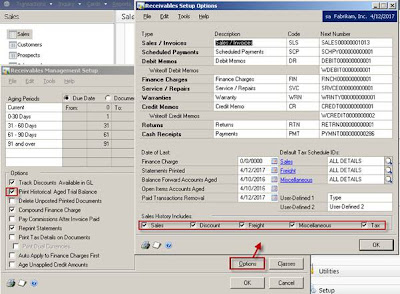
a. Go to Dynamics GP menu -> Tools -> Setup -> Sales -> Receivables
b. Verify that the Print Historical Aged Trial Balance checkbox is marked.
c. Click Options and verify that Sales History boxes are marked as well.

3. RUN ROUTINE. To run Paid Transaction Removal in Dynamics GP:
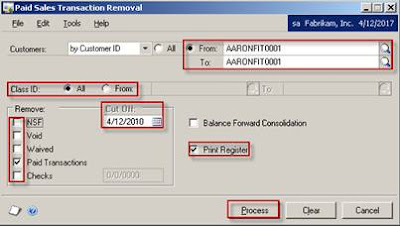
a. Go to Dynamics GP menu -> Tools -> Routines -> Sales -> Paid Transaction Removal
b. Select a range of customers to run it for.
c. Enter a cutoff date.
d. Mark transaction to be removed. If Check is selected, enter a cutoff date for checks.
e. Mark Print Register.
f. If Balance Forward Consolidation is marked, the routine will consolidate balances and move current transactions to the non-current bucket.
g. Click Process.

Once the process ends, the register of all transaction moved to history will be printed. You can view history transactions in the Inquiry window.